Google Scholar
Google Scholar is the scientific counterpart of Google. You can search for books, (peer reviewed) articles, reports, conference papers, and so on. You can narrow down your list of results by selecting a time period and/or language in the left-hand column.
If your work can be found with Google Scholar, you can make a user profile. This way you can link your own articles and get notifications if someone cites you..
Please note: Google Scholar does not check the quality of the sources; they only list them.
Access
Google Scholar is freely available for everyone. However, if you search within the UGentNet, you can find the full text more easily. You can check your settings via 'Settings' > 'Library Links' and ensure te UGent box is ticked.

Search operators
When available, Google Scholar will search through the metadata, the abstract ánd the full text.
- Use quotation marks to keep phrases together, i.e. “plant diseases”
- Use the AND operator by typing AND or leaving a space, e.g. cattle AND housing
- Use the OR operator by typing OR or |, e.g. beetles | coleoptera
- Use the NOT operator by typing a minus sign (–) immediately followed by the term, e.g.: “forest ecology” –tropics
- Use descriptors like ‘author:’, ‘intitle:’, … immediately followed by the term/name, e.g. author:Todaro
- Use initials for the author’s first name(s)
- Use + immediately followed by the word if it is a word that is easily left out, f.i. articles or prepositions, e.g. +the lancet
- You cannot truncate in Google Scholar
You can sort your search results on date and find more similar sources via "Cited by". For an advanced search, click the menu button (top left) > Advanced search.
Export
You can also use Google Scholar to format citations in MLA, APA, or ISO 690. You can do this by looking up the source and clicking the quotation mark.

How to save search results
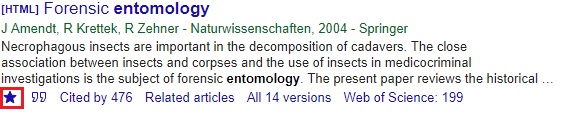
Using a Google account, you can compile your own library with references and/or links to the full text. You can do this by clicking the star under the search result. (Make sure that you are logged in with your Google account.)
Tips
- You can install the Google Scholar extension in your browser.
- You can set Google Scholar to different languages, just like regular Google.
- The results are sorted on relevance (search terms and the number of citations). This means that the most recent sources are usually not at the top.
Source reference
More tips
- Article: requesting an article from another library (Search / find)
- Google: search tips (Search / find)
- Journal: how to find a print or e-journal or newspaper (Search / find)
- Resources: helpful tools to find literature (Search / find)
- Resources: search and find information (Search / find)
Translated tip
Last modified March 2, 2026, 3:49 p.m.